The Yealink T87W is a 7-inch touchscreen VoIP phone with Bluetooth 5.0, Wi-Fi 6, and AI noise cancellation. For quick day-to-day reference, see the T87W cheat sheet article.
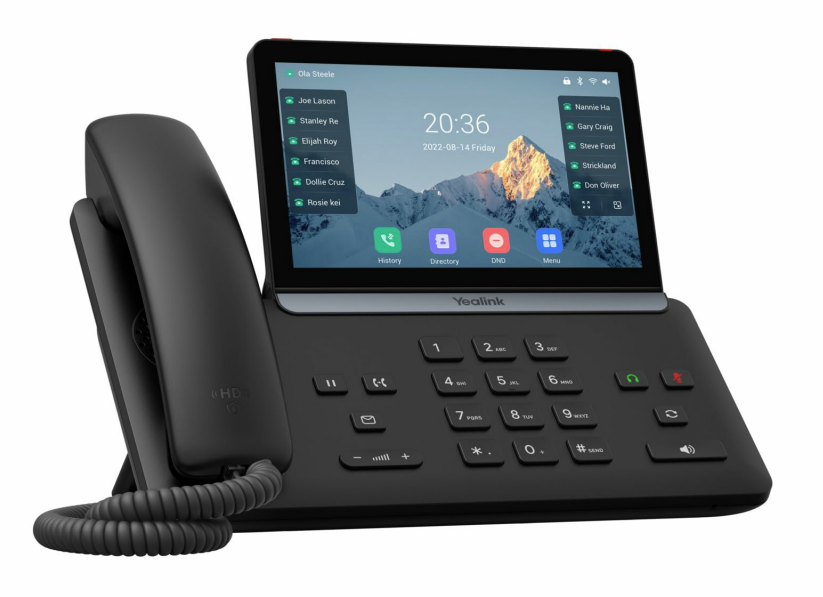
Basic call functions
- Make a call: Lift the handset or press Speaker → dial the number → tap Dial on the touchscreen
- Answer a call: Lift the handset or press Speaker when the phone rings
- End a call: Replace the handset or tap End Call on the screen
- Hold / resume: Tap Hold during a call → tap Resume to continue
Touchscreen navigation
The 7-inch touchscreen supports intuitive gestures:
- Swipe left / right to move between screens
- Tap icons to open apps or menus
- Pinch to zoom where applicable
Bluetooth pairing
- On the touchscreen, go to Menu → Basic → Bluetooth
- Enable Bluetooth
- Put your headset or device into pairing mode
- Select the device from the list on screen and follow the prompts
Tip: The T87W supports Bluetooth 5.0 — it works with most wireless headsets and mobile phones.
Wi-Fi connection
- On the touchscreen, go to Menu → Basic → Wi-Fi
- Enable Wi-Fi
- Select your network from the list
- Enter the password if prompted and tap Connect
Note: The phone supports Wi-Fi 6 for fast, stable wireless connectivity. Move closer to the router if the signal is weak.
Headset usage
Connect your headset via Bluetooth or the dedicated headset port. The phone supports wear-sensing headphones that automatically switch audio when you put them on or take them off. Configure headset settings in Menu → Basic.
Cleaning the phone
- Use a soft, dry cloth for regular cleaning
- For stubborn marks, use a slightly damp cloth with a mild, non-abrasive cleaner
- Never use harsh chemicals or abrasive materials on the screen
Troubleshooting
| Problem | Possible cause | Fix |
|---|---|---|
| Phone won't power on | No power / faulty cable | Check Ethernet cable is in a PoE port, or connect the power adapter to a working outlet |
| Can't make or receive calls | SIP account not registered | Check network cable. Verify SIP registration on screen. Contact IT at ext. 7225 |
| Poor audio quality | Network congestion or mic issue | Check network stability. Ensure AI noise cancellation is enabled. Try a different headset |
| Bluetooth won't pair | Device not in pairing mode | Put the Bluetooth device into pairing mode and bring it within range. Toggle Bluetooth off and on |
| Wi-Fi unstable | Weak signal or wrong password | Move closer to the router. Re-enter the Wi-Fi password. Confirm router supports Wi-Fi 6 |
⚠ Still having issues? Contact IT at extension 7225 for further assistance.
Was this article helpful?
That’s Great!
Thank you for your feedback
Sorry! We couldn't be helpful
Thank you for your feedback
Feedback sent
We appreciate your effort and will try to fix the article