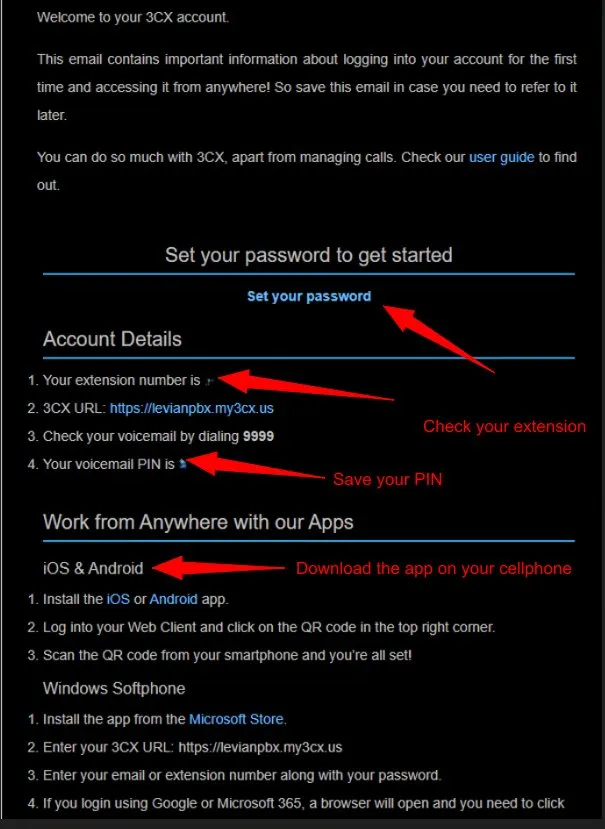
You will receive a welcome email from 3CX when your account is created. Save that email — it contains your extension number, voicemail PIN, and login URL.
Your account details
When you receive your welcome email, note down the following:
- Your extension number (shown in the email)
- Your 3CX URL: https://levianpbx.my3cx.us
- Check voicemail by dialing 9999
- Your voicemail PIN (shown in the email — save it)
Step 1 — Set your password
Before doing anything else, set your password to activate your account.
- Open your welcome email
- Click Set your password
- Choose a strong password and save it
Step 2 — Install the app on your phone
iOS & Android
- Install the 3CX app from the App Store (iOS) or Google Play (Android)
- Log into the Web Client at https://levianpbx.my3cx.us
- Click the QR code icon in the top right corner
- Scan the QR code with your smartphone — you're all set
Windows softphone
- Install the 3CX app from the Microsoft Store
- Enter your 3CX URL: https://levianpbx.my3cx.us
- Enter your email or extension number along with your password
- If you sign in with Google or Microsoft 365, a browser window will open — complete the login there
Tip: The mobile app lets you make and receive work calls from anywhere, even when you're not in the office.
⚠ Note: If you haven't received your welcome email, contact IT at extension 7225 to have it resent.
Was this article helpful?
That’s Great!
Thank you for your feedback
Sorry! We couldn't be helpful
Thank you for your feedback
Feedback sent
We appreciate your effort and will try to fix the article