This guide covers installation on iPhone, iPad, and Android. The sign-in process is the same on all devices once the app is installed.
Step 1 — Download the Teams app
Install the Microsoft Teams app from your device's app store:
- iPhone / iPad — search for "Microsoft Teams" in the App Store
- Android — search for "Microsoft Teams" in the Google Play Store
Tap Install and wait for it to download.
Step 2 — Sign in
1. Open the app and tap "Sign in"

When the app opens you'll see the sign-in screen. Tap Sign in.
2. Enter your Le Vian email address
In the email field, type username@levian.com (replace username with your own), then tap Sign in.
3. Log in with your Le Vian account
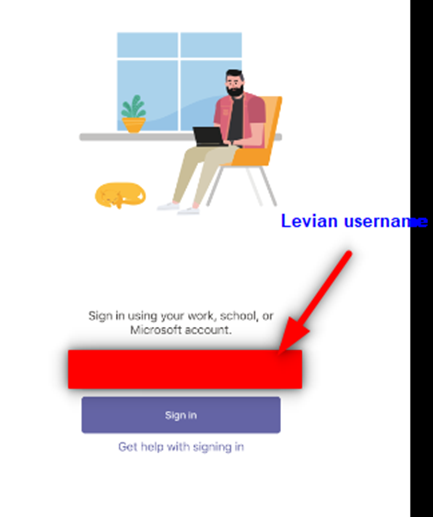
You'll be redirected to the Le Vian login page. Enter your Le Vian password and tap Sign in.
4. Complete 2-step verification
You'll receive a call, text, or app notification to verify your identity. Follow the prompts to approve your sign-in.
5. Grant app permissions
The app may ask for permission to send notifications and access your microphone and camera. Grant or deny these as preferred — Teams will work either way.
All done! Once permissions are set, Teams is ready to use. You can chat, join meetings, and make calls directly from your phone.
Was this article helpful?
That’s Great!
Thank you for your feedback
Sorry! We couldn't be helpful
Thank you for your feedback
Feedback sent
We appreciate your effort and will try to fix the article