Use Quick Assist when IT needs to remotely access your computer to help troubleshoot an issue. This is built into Windows 11 — no installation needed.
Steps to share your screen with IT
Step 1 — Open the Start menu
Click the Windows icon on the taskbar at the bottom of your screen.
Step 2 — Search for Quick Assist
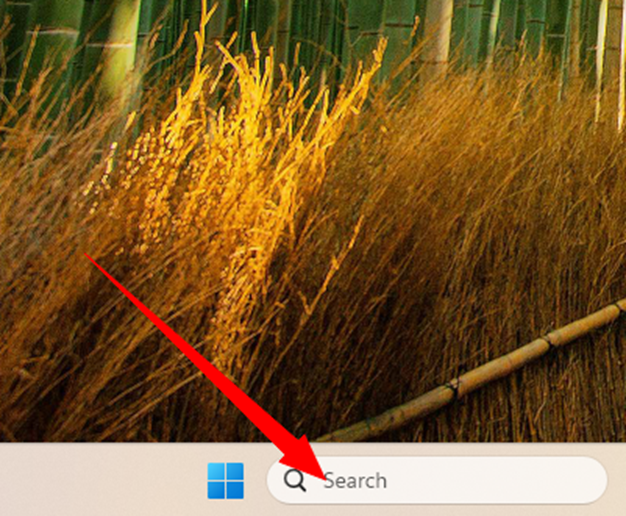
In the search bar, type Quick Assist. You'll see it appear in the search results.
Step 3 — Open the Quick Assist app
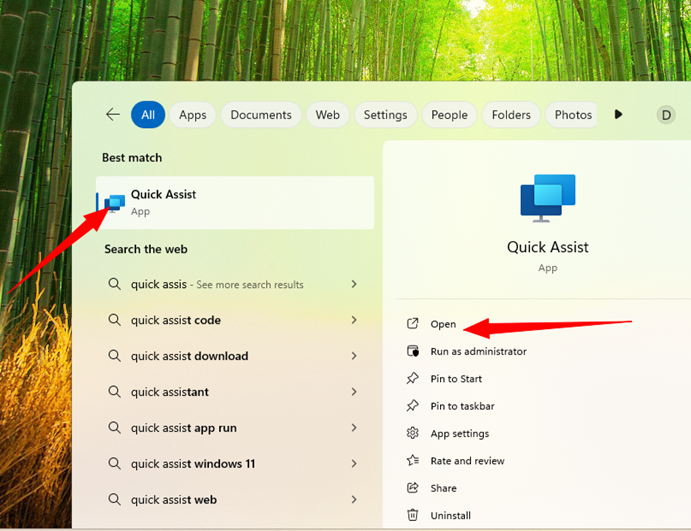
Click on the Quick Assist app to launch it.
Step 4 — Click "Get assistance"
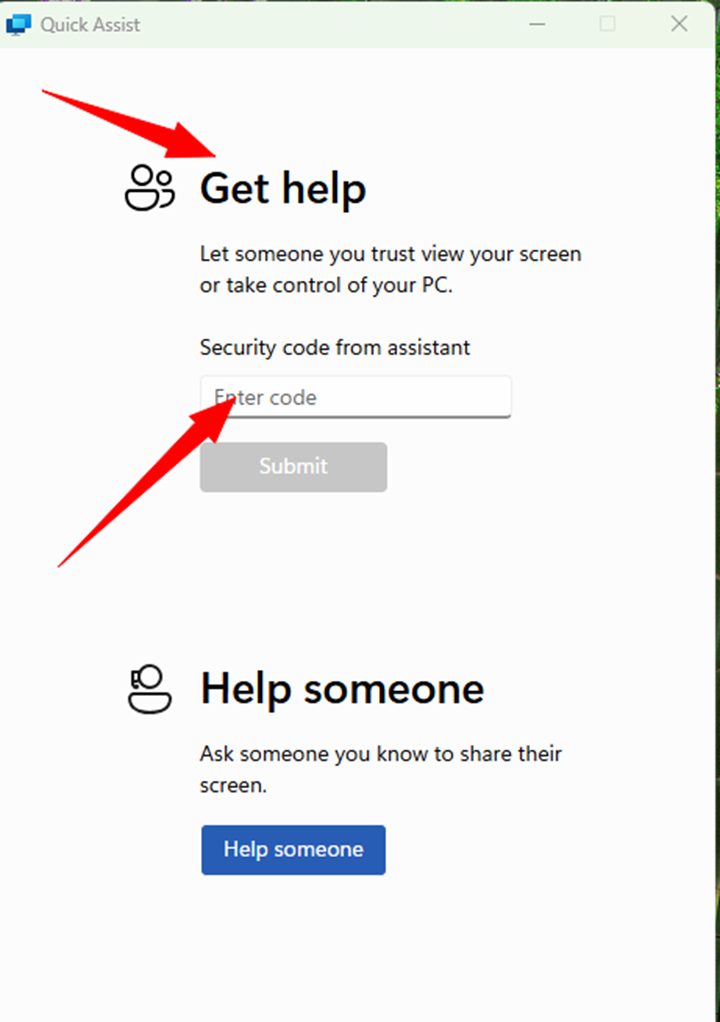
Once the app opens, click "Get assistance" — this is the option for receiving help from IT.
Step 5 — Enter the security code
IT will give you a 6-digit security code. Enter it when prompted, then click Submit.
Step 6 — Allow remote control
When prompted, click Allow to let IT take control of your screen. You can watch everything they do in real time.
Good to know: You can stop the session at any time by clicking Stop sharing or closing the Quick Assist window.
Was this article helpful?
That’s Great!
Thank you for your feedback
Sorry! We couldn't be helpful
Thank you for your feedback
Feedback sent
We appreciate your effort and will try to fix the article